Examples by country
💡 Intro to e-invoice
History and mandatory status
Note: E-INVOICING STATUS: E-INVOICE IS MANDATORY TO ALL COMPANIES
Colombia started on 2015 developing the e-invoice and was able to learn from the experience of other countries. This allowed them to use UBL formats on their XML files, and make implementation much easier and cheaper than other countries.
E-invoice became mandatory on 2019.
Regulatory authorities
DIAN = Dirección de impuestos y aduanas nacionales https://www.dian.gov.co
Document types
- Factura electrónica (e-invoice)
- Nota de crédito (credit note)
- Nota de débito (debit note)
- Documento de soporte
- Nota de crédito a documento de soporte
- Documento equivalente POS
- Nota de crédito a documento equivalente
Taxes
The main indirect tax in Colombia is the IVA (VAT) with different values but there is a series of other taxes like Impuesto al Consumo (IC) and local taxes like ICA.
Local Requirements to operate
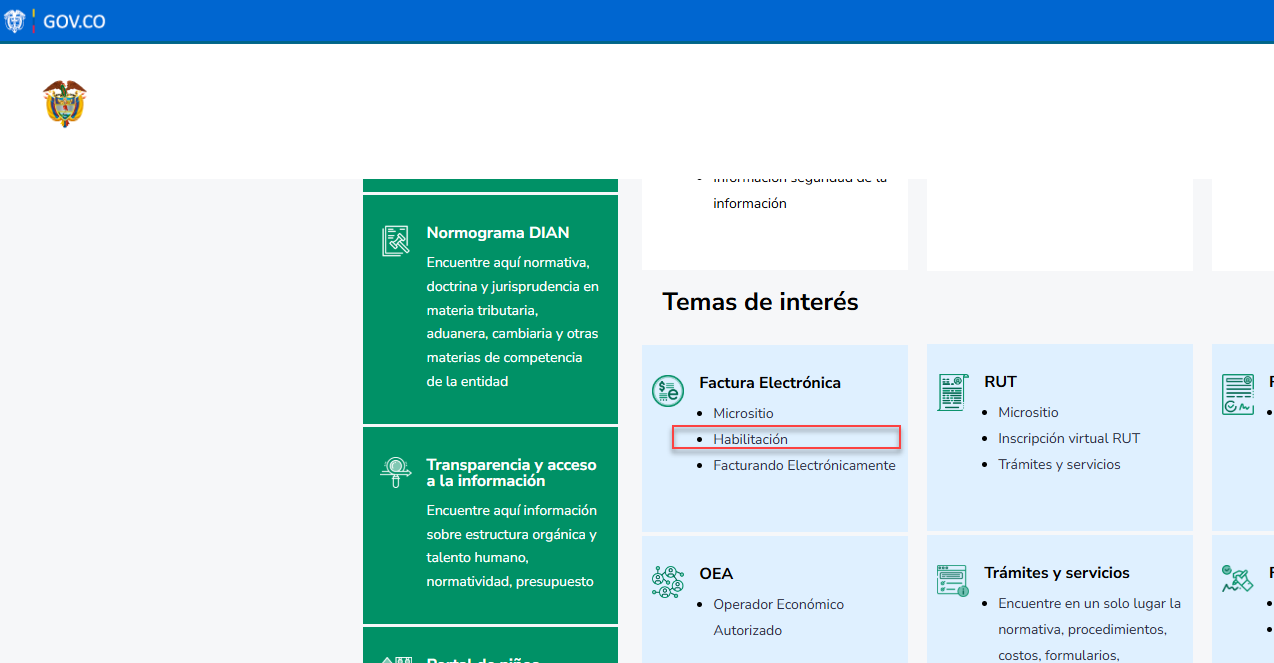
Step 1 - Access the DIAN website at https://www.dian.gov.co, and then, in the "Topics of Interest" section, under "Electronic Invoicing," click on the option that says "Enablement".
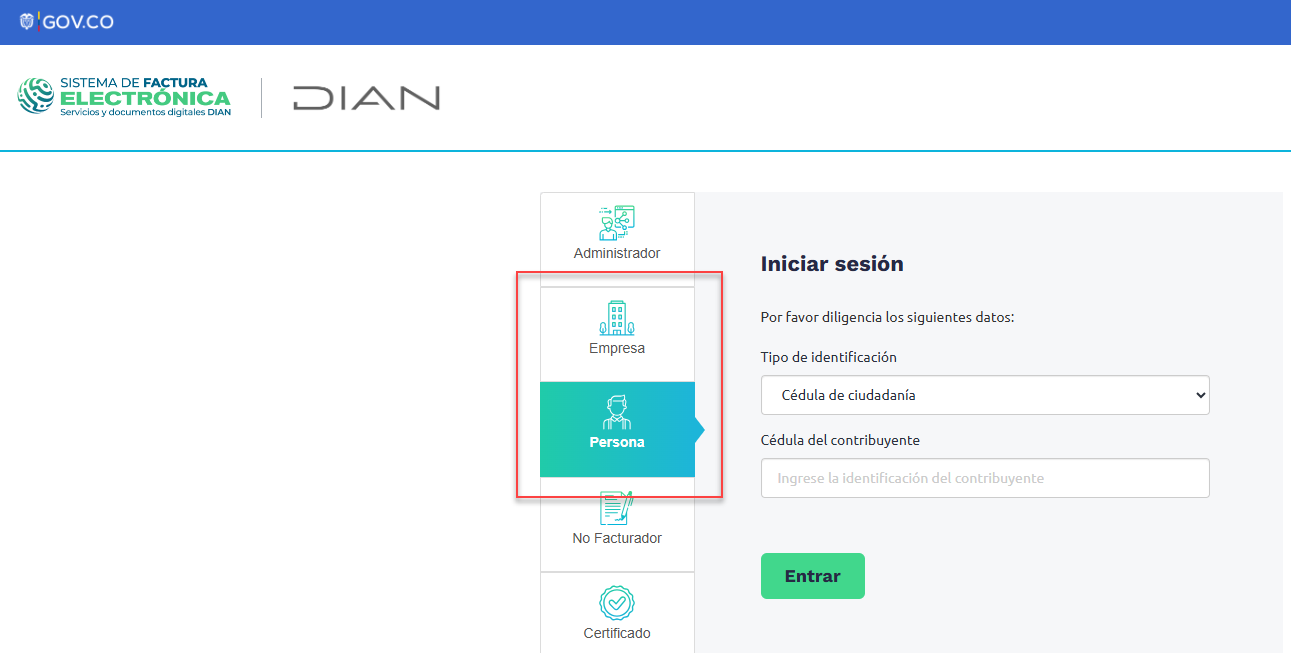
Step 2 - Next, select the type of user you registered with at DIAN (company or individual), enter the information requested by the system, and click the "Enter" button.
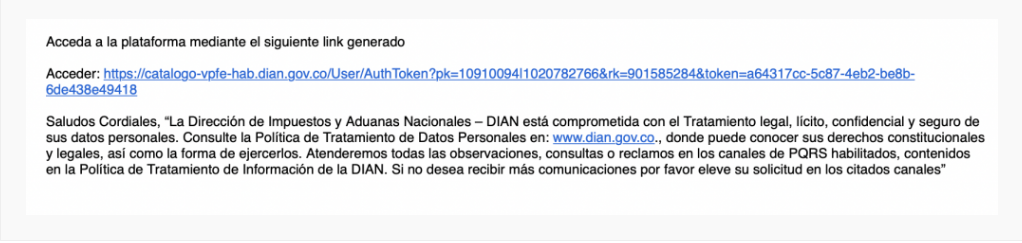
Step 3 - Upon completing the data, the DIAN system will send an email to the address registered in the RUT with an access link (if it is a company, the email will be sent to the personal email registered in the NIT of the legal representative). The email is similar to the following.
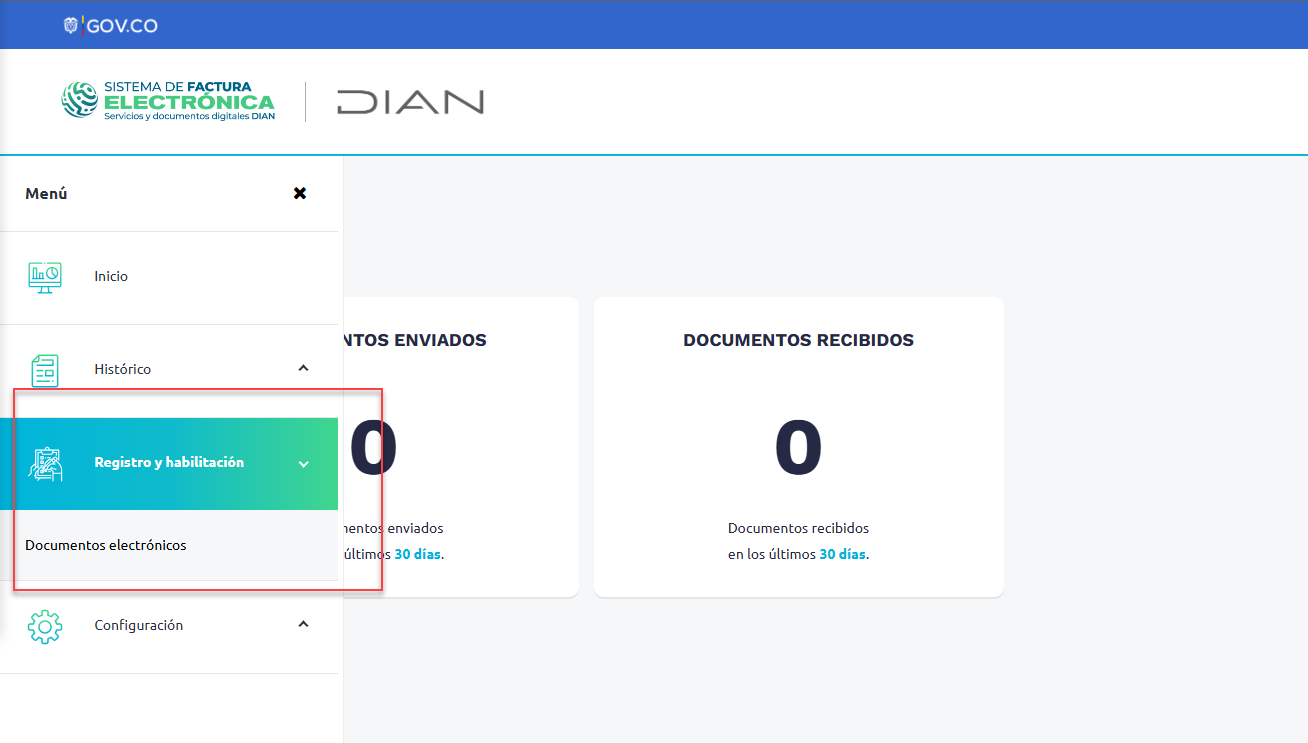
Step 4 - Once you access the DIAN enablement panel, navigate to the menu located on the left side and click on Registration and Enablement > Electronic Documents.
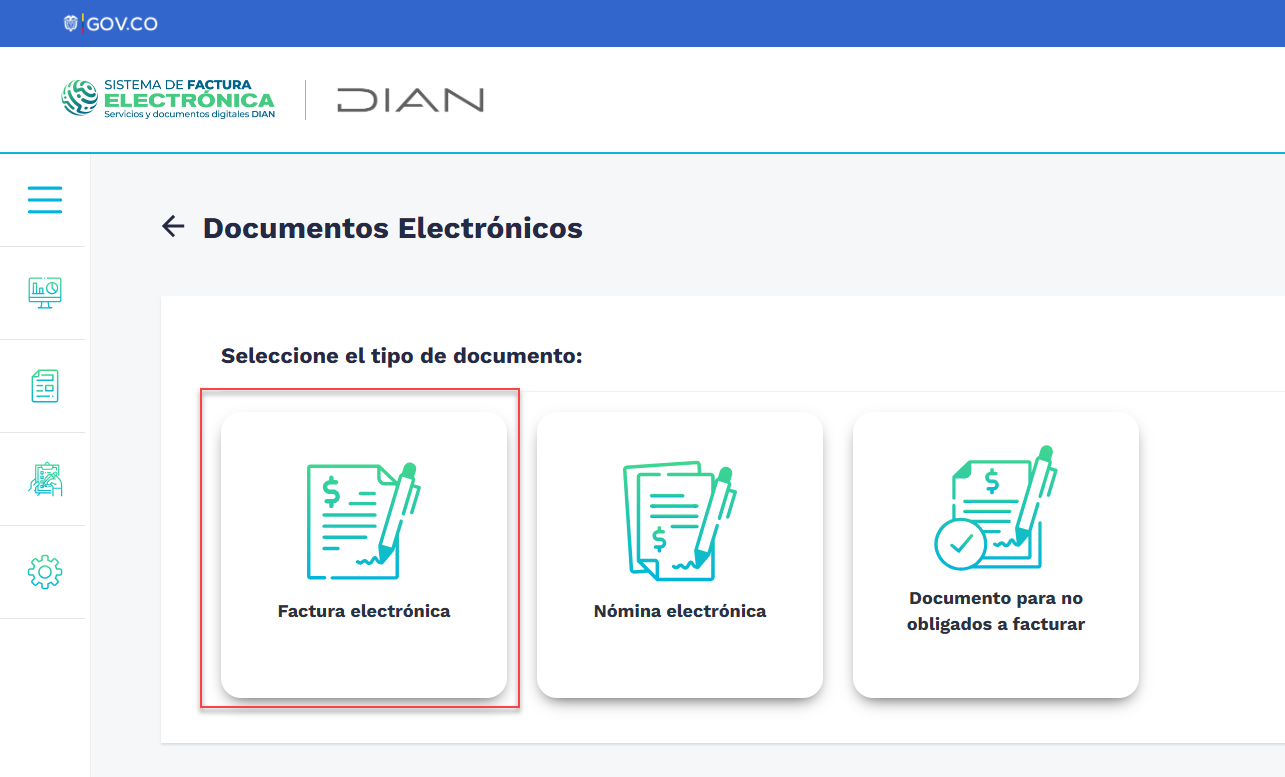
Step 5 - Next, the system will prompt you to select the type of document; select Electronic Invoice.
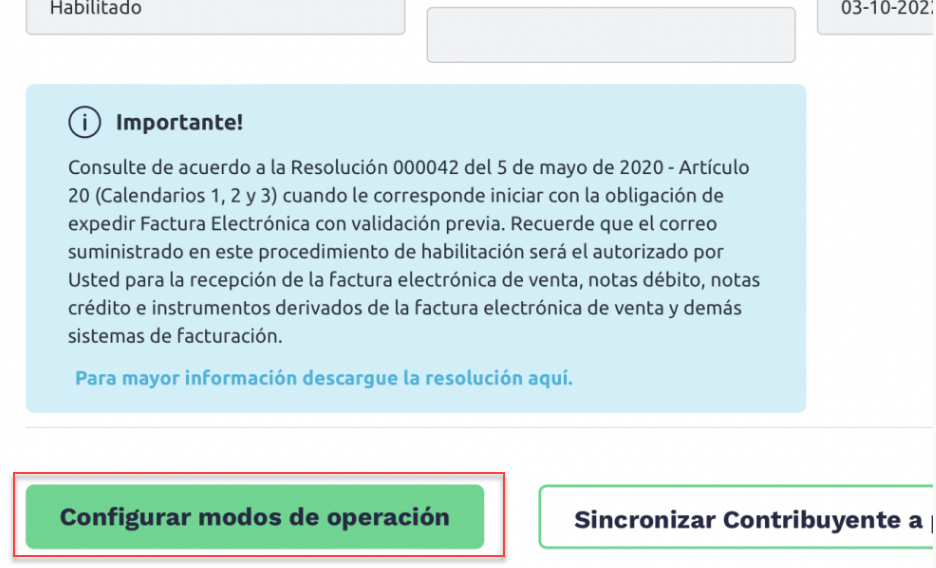
Step 6 - Here you will find the company details. Once reviewed, select the "Configure Modes of Operation" button.
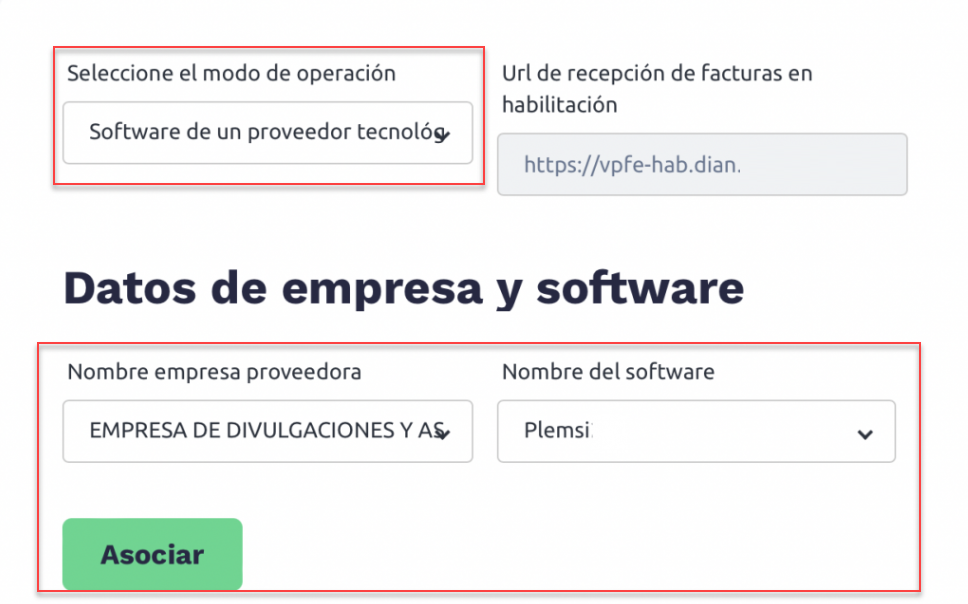
Step 7 - Once in the modes of operation, you must select the following options from the lists and associate them.
||| |------------|------------| | Mode of Operation: | Software from a technology provider | | Provider Company Name: | EMPRESA DE DIVULGACIONES Y ASESORÍAS ECA SAS. | | Software Name: | Plemsi (Plemsi2 is not available). |
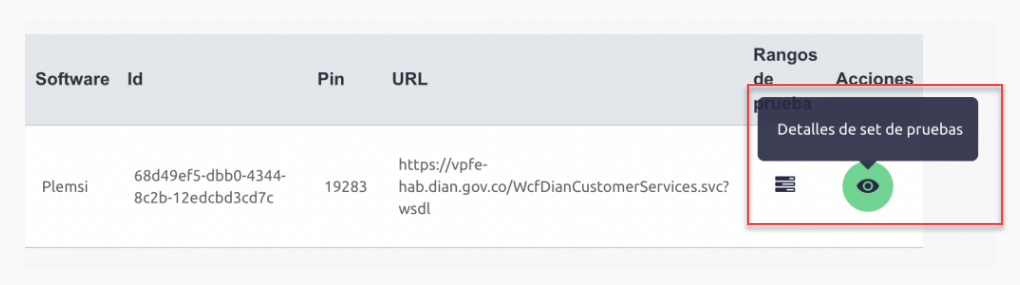
Step 8 - Plemsi will be added to the table located at the bottom with the status 'In Progress,' and on the right side, the 'Test Set Details' option will appear. Click there. In the top bar of the screen, an alphanumeric value called "SetTestID" will appear. Copy it and save it for creating the account within the system.
Step 9 - Once we receive the SetTestID and RUT PDF, we will active your company within 1 to 2 business days.