Examples by country
💡 Intro to e-invoice
History and mandatory status
Note: E-INVOICING STATUS: E-INVOICE AND E-RECEIPT ARE MANDATORY TO ALL COMPANIES
Peru started developing the e-invoice later than other countries in the region and was able to learn from the experience of other countries. This allowed them to use UBL formats on their XML files, and make implementation much easier and cheaper than other countries.
E-invoice became mandatory on 2018 and e-receipt in 2022.
Regulatory authorities
SUNAT = Superintendencia Nacional de Aduanas y de Administración Tributaria https://www.sunat.gob.pe
Document types
- Factura electrónica (e-invoice)
- Nota de crédito (credit note)
- Nota de débito (debit note)
- Boleta electrónica (e-receipt)
- Guía de remisión (waybill)
Taxes
The main indirect tax in Peru is the IGV (General sales tax) at 0% - 18% and there is a series of other taxes like ISC (Impuesto selectivo al consumo) that are added in addition to IGV.
Local Requirements to operate
- RUC tax id issued by SUNAT
- Choose Efact as your PSE provider on the SUNAT SOL portal (see the steps below)
- Once the account is created, we will active your company within 1 to 2 business days.
Select Efact as your PSE on SUNAT
On the SUNAT Operaciones en línea portal (SOL credentials) you must authorize Efact as your electronic services provider (PSE). Follow these steps:
Open the SUNAT Operaciones en línea portal (for example from sunat.gob.pe, online services / SOL login).
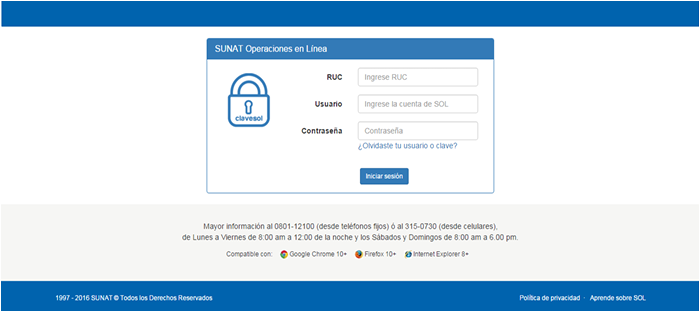
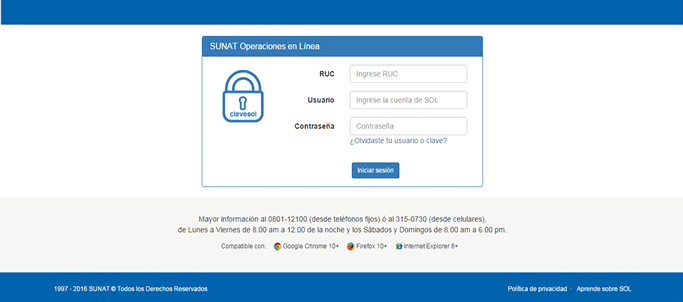
Enter your RUC, username, and SOL password. Then click Iniciar sesión (Log in).
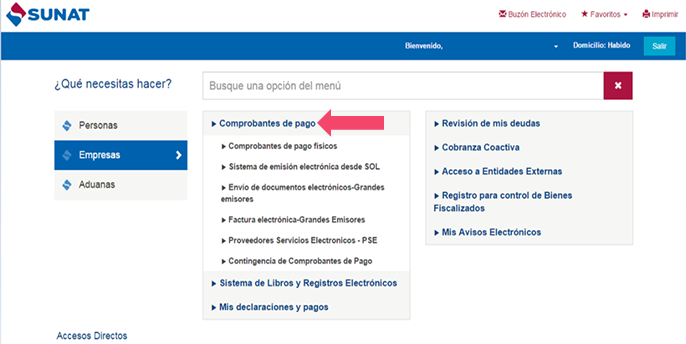
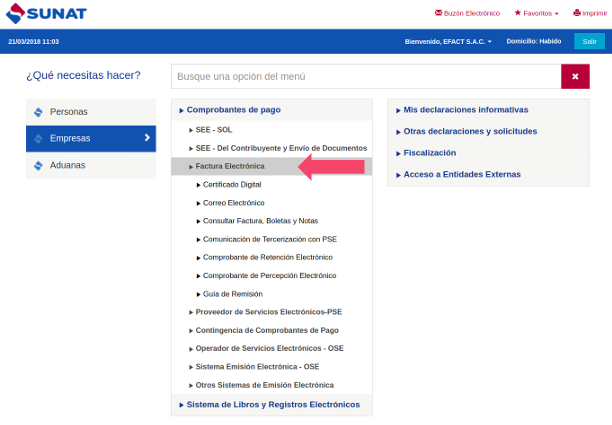
Under ¿Qué necesitas hacer?, choose Empresas (Companies), then Comprobantes de pago (Payment receipts).
In the menu, open Factura electrónica (or Factura electrónica-Grandes emisores, depending on what your account shows).
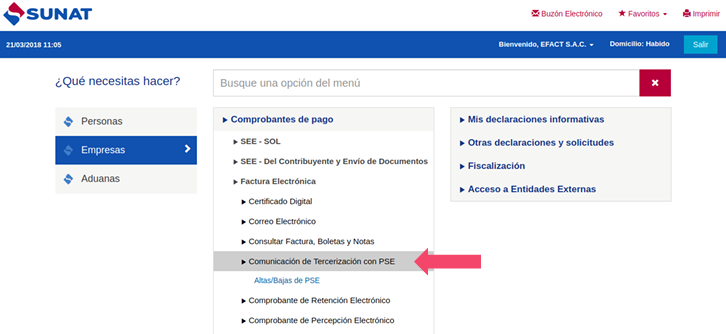
Select Comunicación de tercerización con PSE (the label may appear as Comunicación Tercerización con PSE).
Click Altas / Bajas de PSE in the side menu.
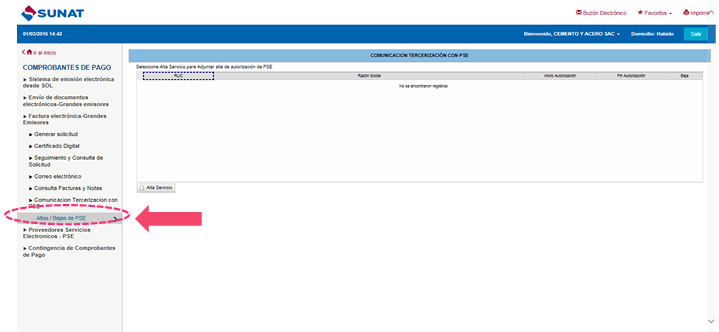
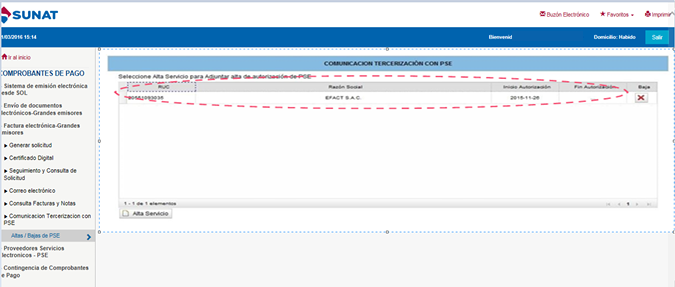
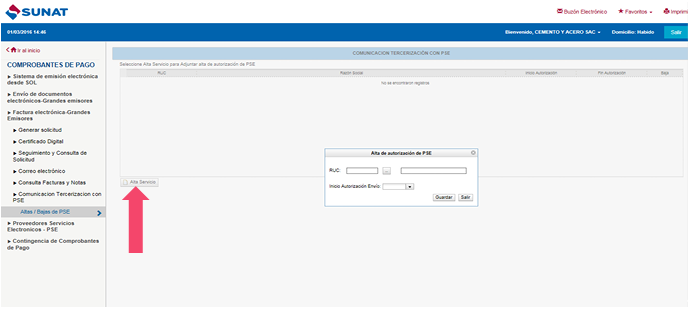
On the Comunicación tercerización con PSE screen, click Alta servicio. A form opens to register the PSE authorization.
In the Lista de PSE activos dialog, use the search fields (tax ID and/or name) and Buscar to find the provider.
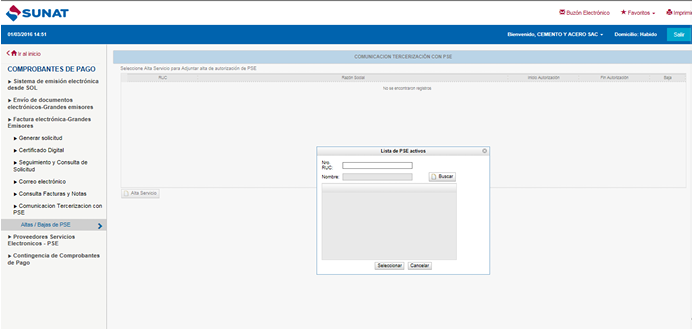
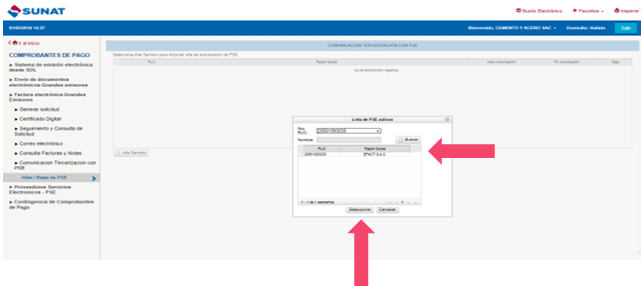
Enter Efact’s RUC 20551093035, click Buscar, select the EFACT S.A.C. row, and click Seleccionar.
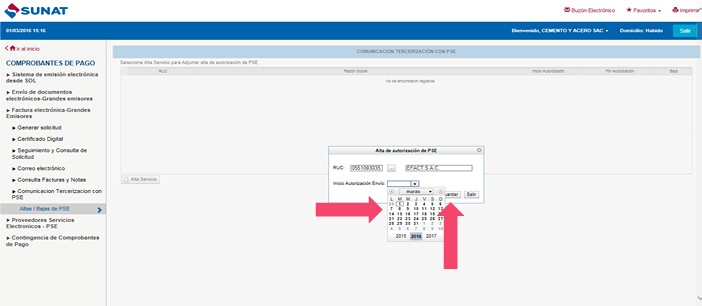
In Alta de autorización de PSE, set Inicio de autorización / Inicio autorización envío to a date after the day you complete this process, then click Guardar (Save).
You should see Efact listed as your PSE, with the authorization start date (and end date, if applicable).